01
Worker
Choose Add photo
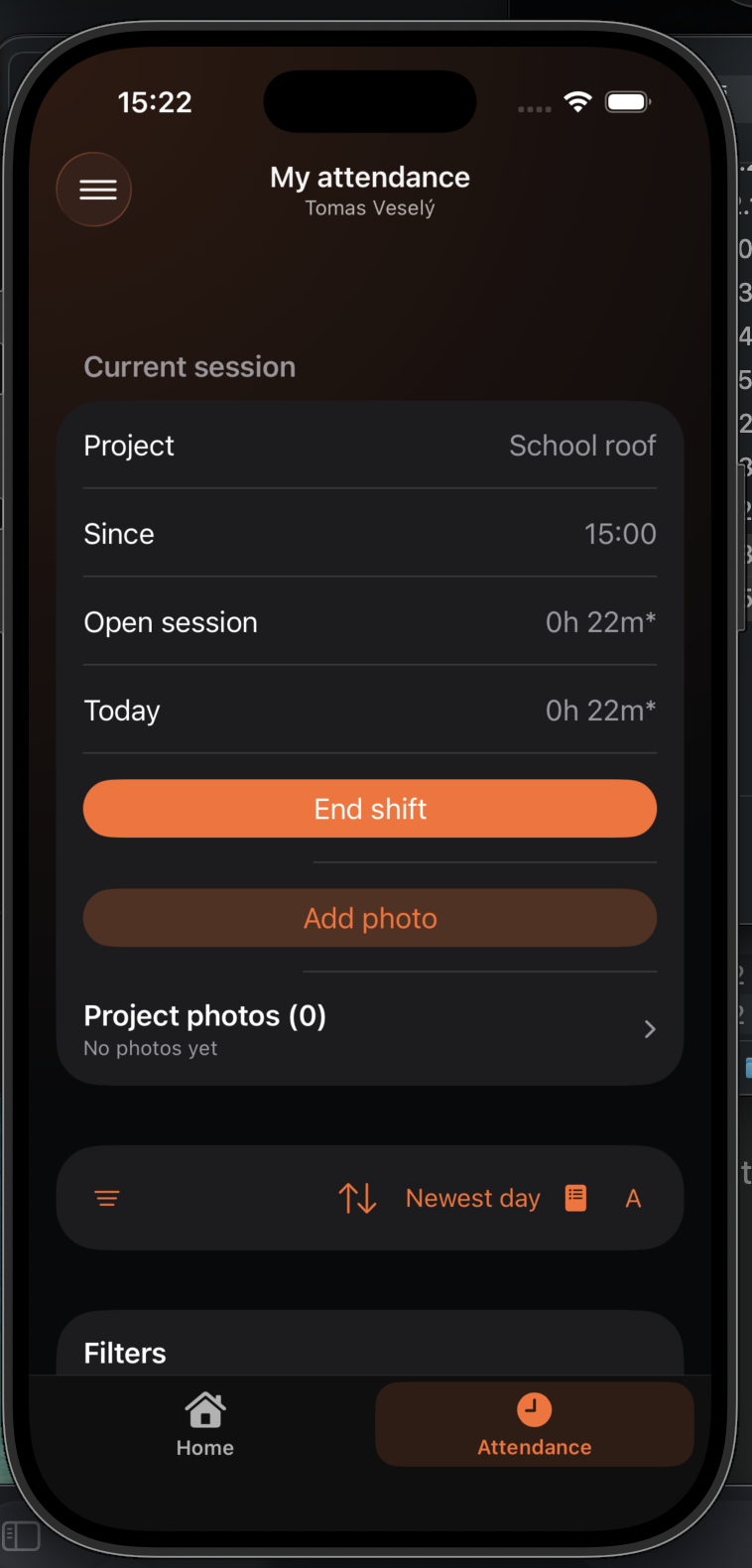
During an active shift, open Attendance and tap Add photo.
A photo is stored against a specific project and day, so the worker, team lead, and administrator can find it later.
During an active shift, open Attendance and tap Add photo.
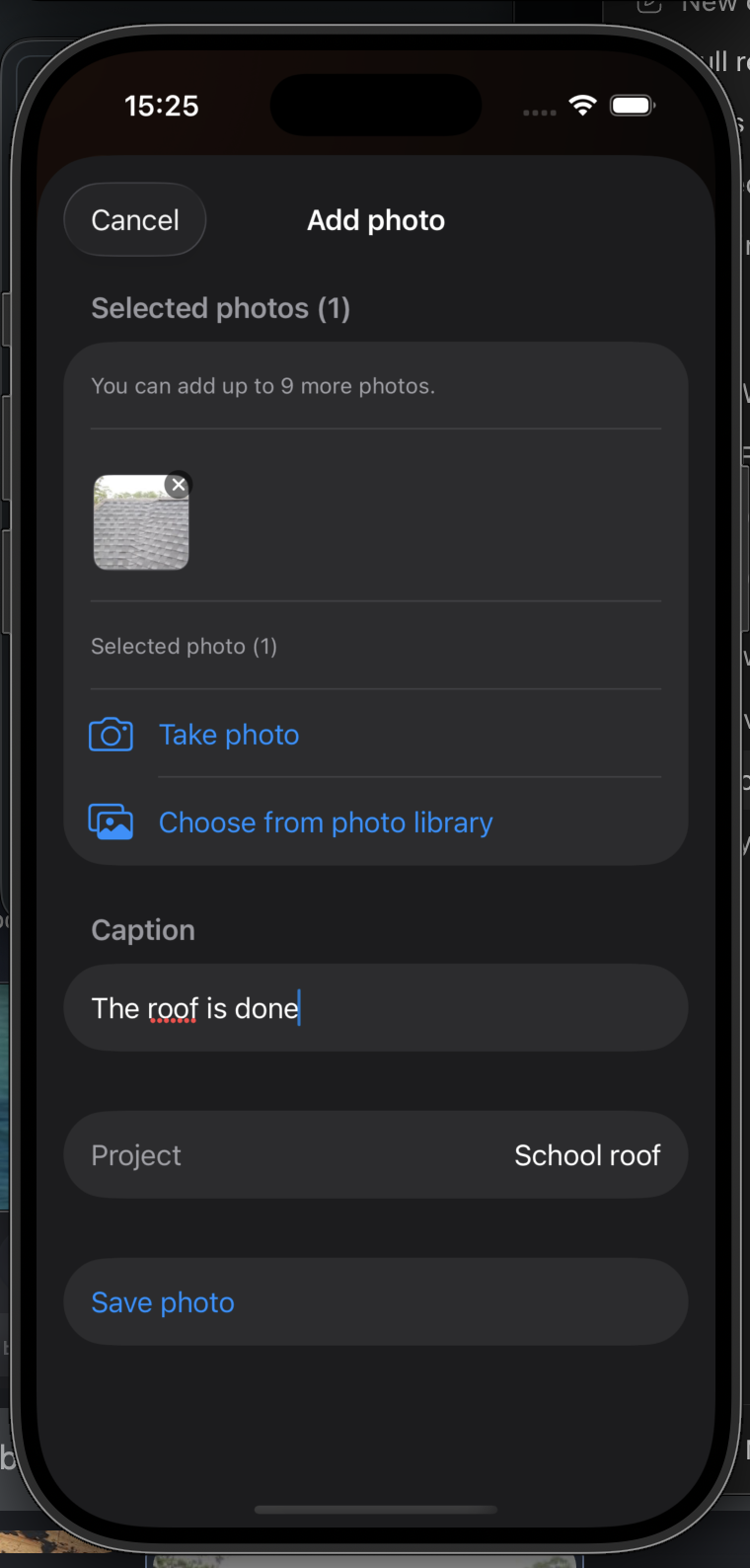
Use the camera or library, add a short caption, and save the photo.
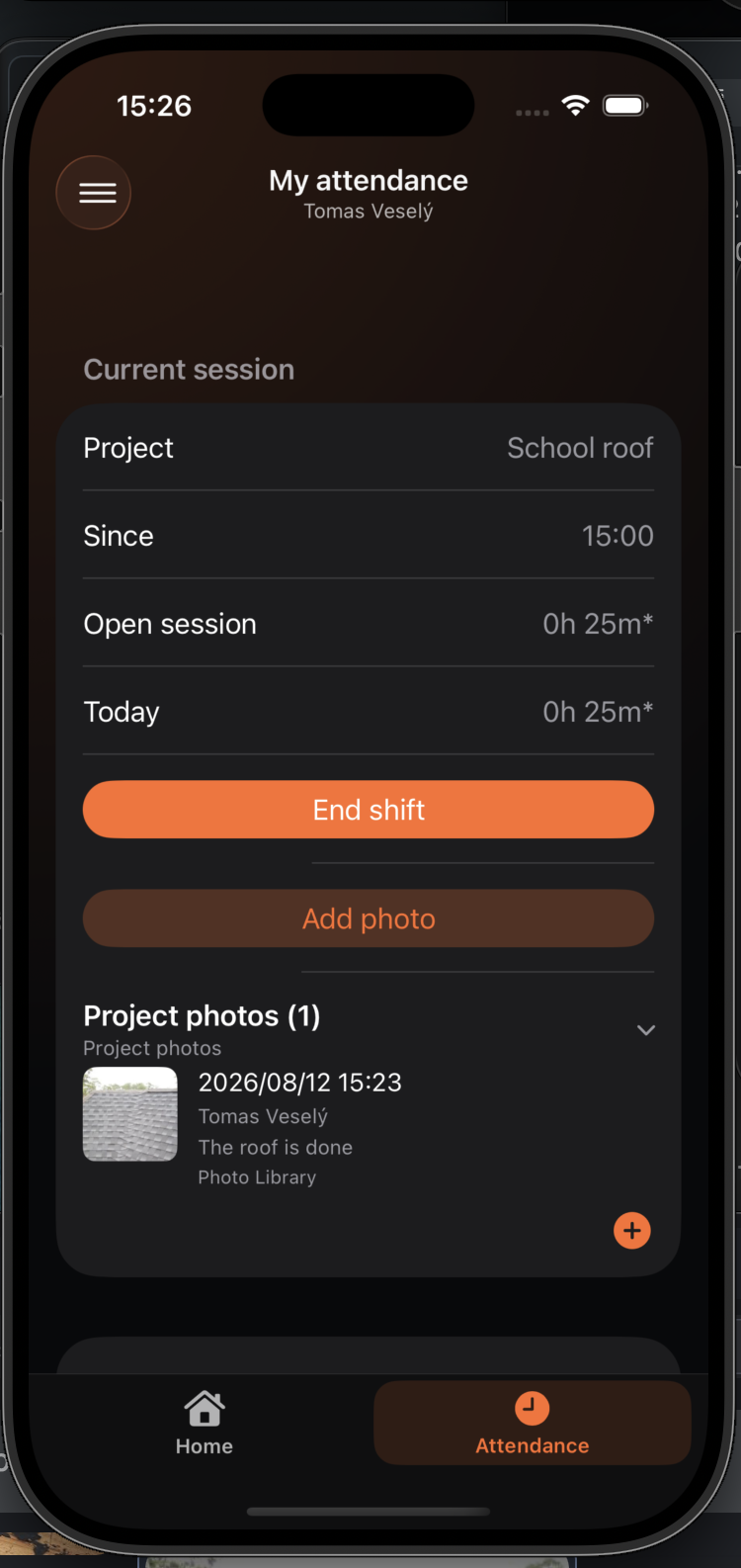
The current shift shows how many project photos have been added.
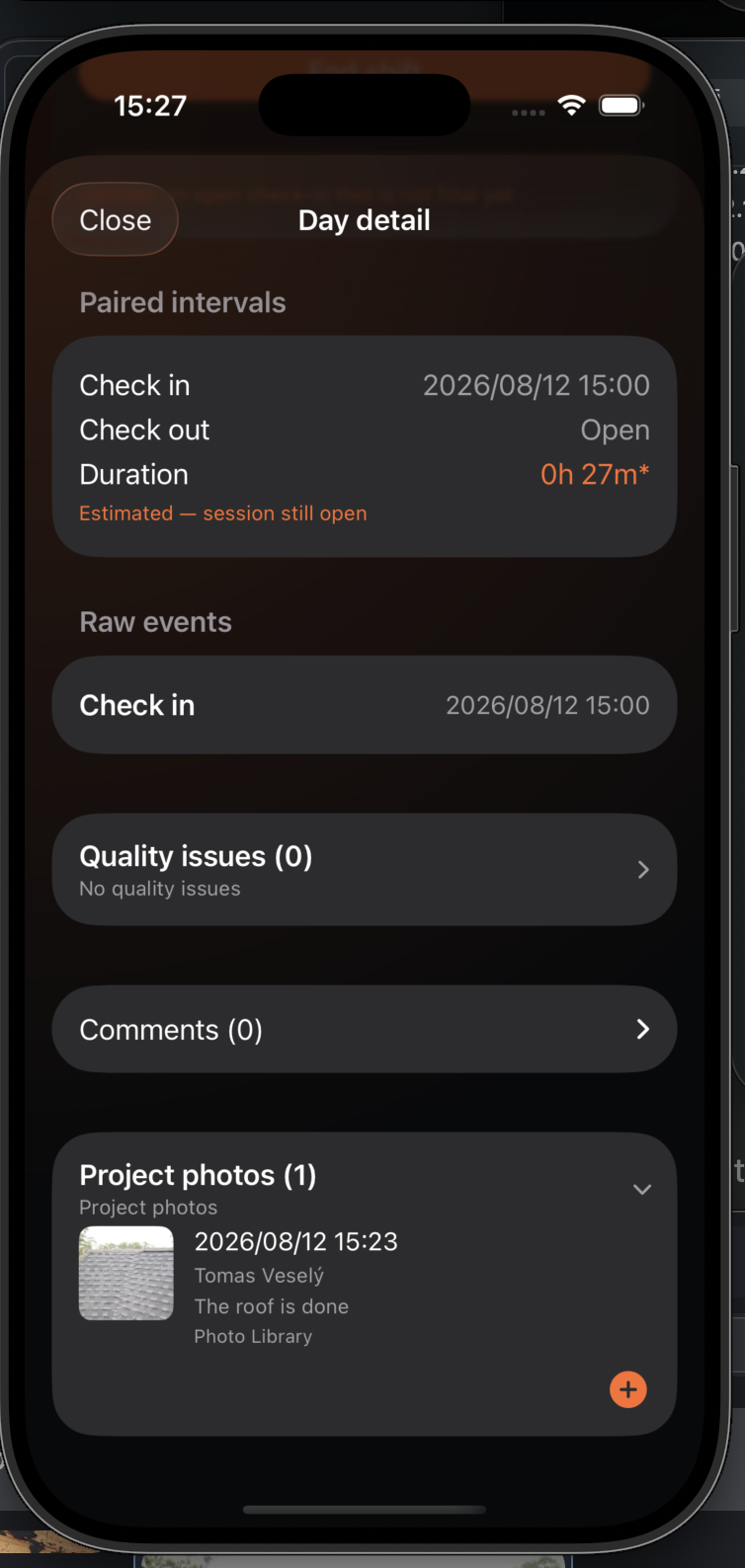
Open the day to find the photo and its caption under Project photos.