01
Admin
Select receipts with filters
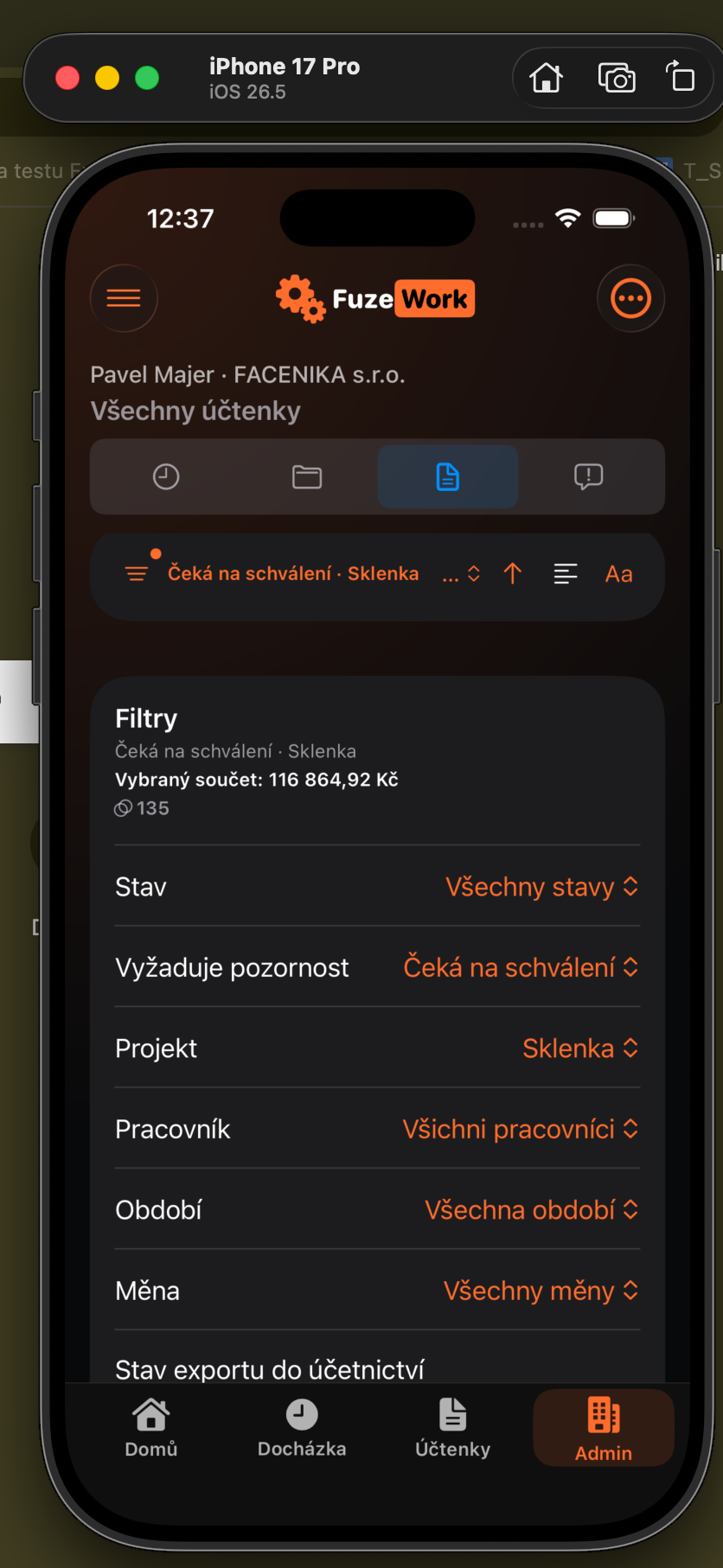
Open Admin, go to Receipts, and set status, attention, project, worker, period, currency, or search text. Check the selected count and total before continuing.
An informative export is for checking and sharing the currently selected receipts. Unlike an accounting export, it does not change their accounting export status.
Open Admin, go to Receipts, and set status, attention, project, worker, period, currency, or search text. Check the selected count and total before continuing.
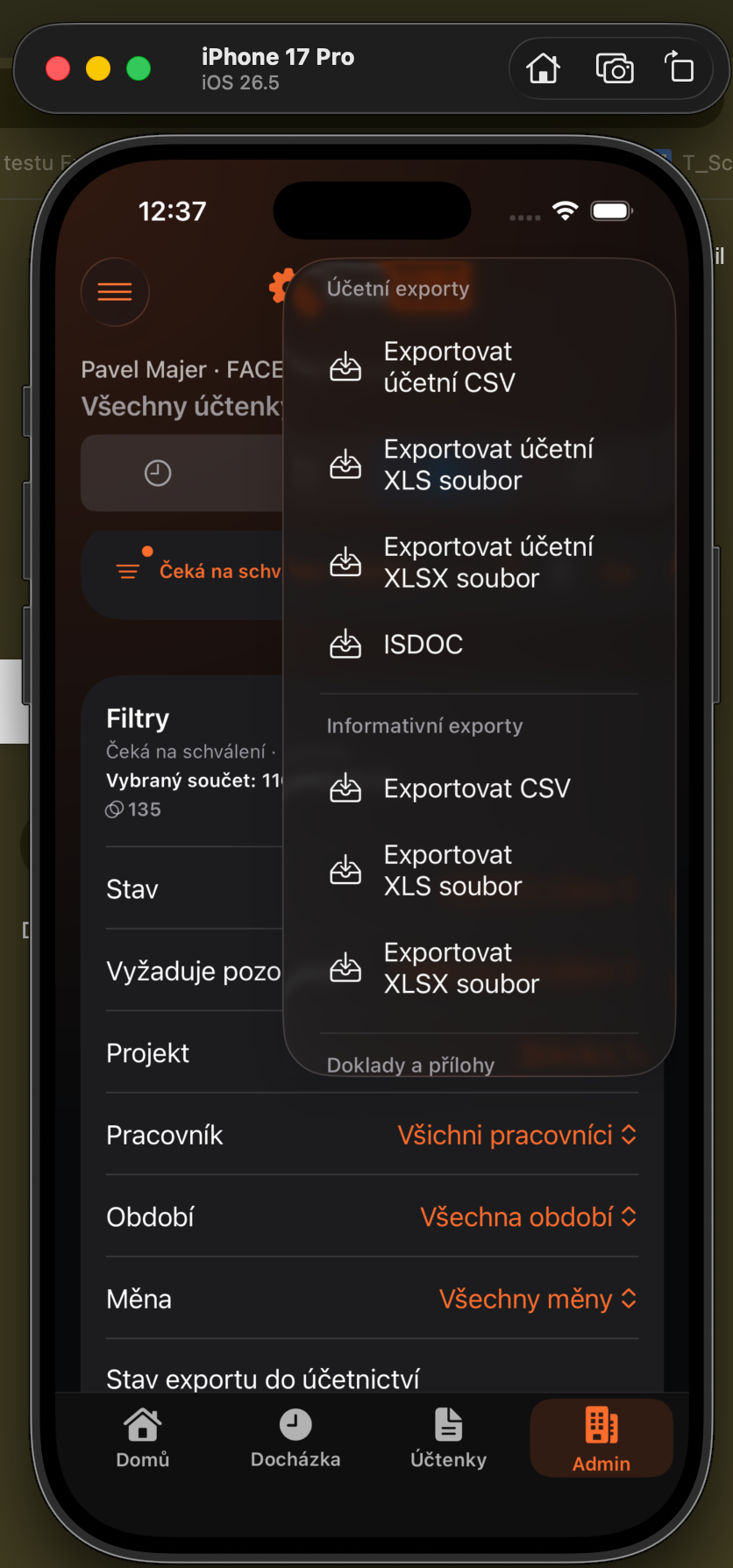
Open the export menu and choose CSV, XLS, XLSX, or PDF with attachments under Informative exports. Use XLSX for spreadsheet work and PDF with attachments for a document archive.
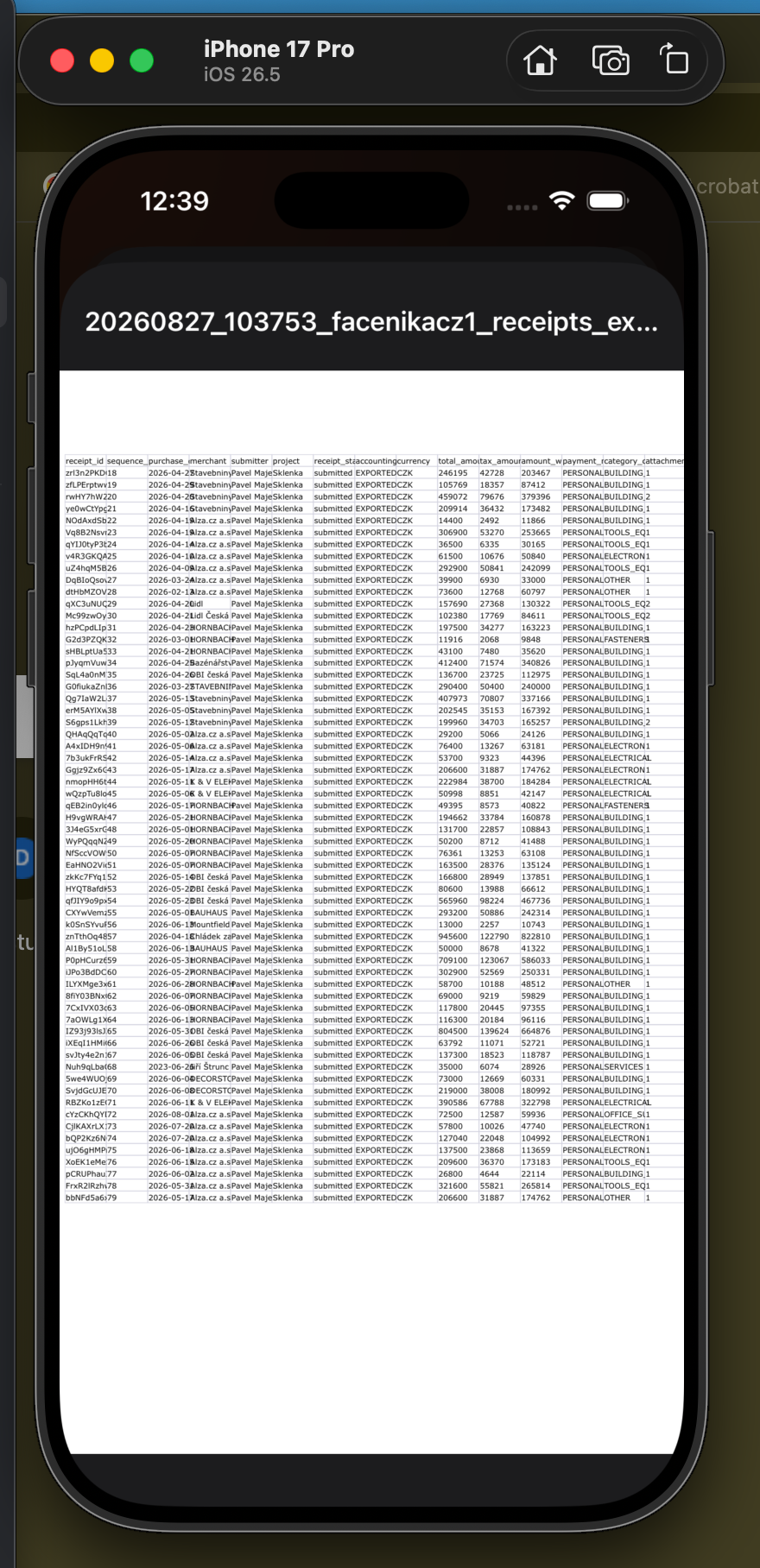
Open Receipt exports after generation. For a ready XLSX, choose Open, Share file, or Share link. A file can be attached to email; a link is convenient when no attachment is needed.
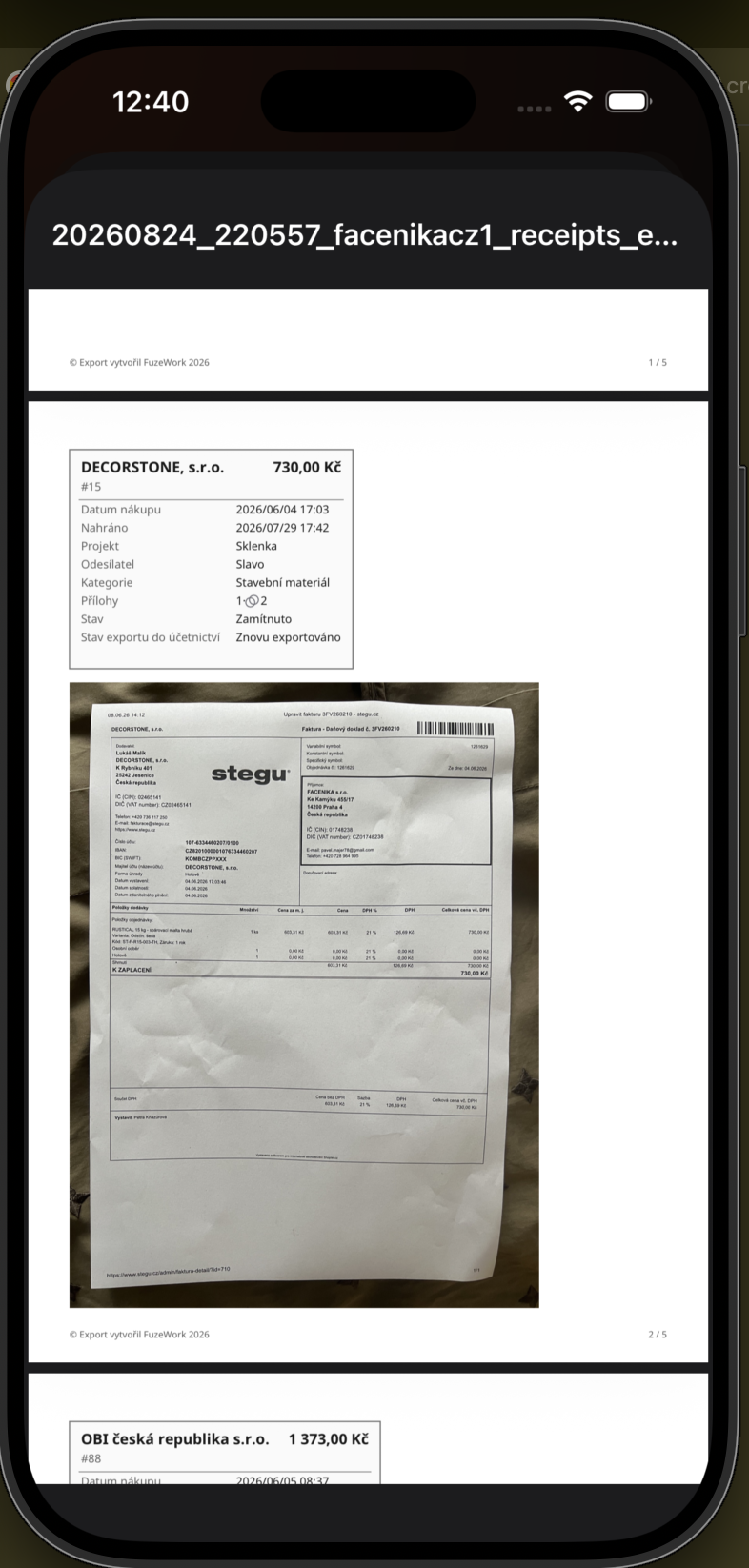
The first PDF page lists the date, purpose, receipt count, active filter, author, and included documents. Each receipt then gets its own page with a cover sheet and original attachment.
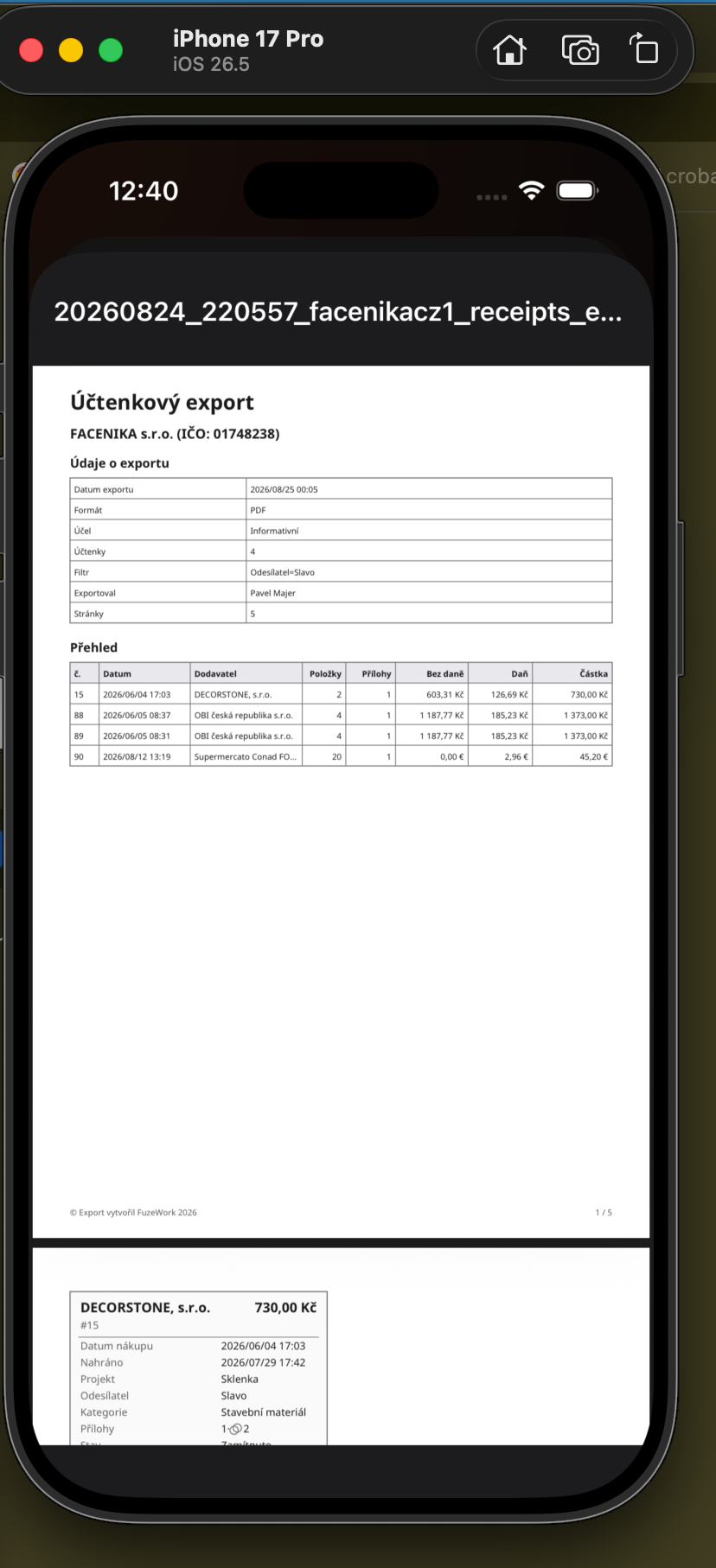
The cover sheet records merchant, amount, date, project, submitter, category, receipt status, and accounting export status. The original image or another attachment appears below it.